All Task
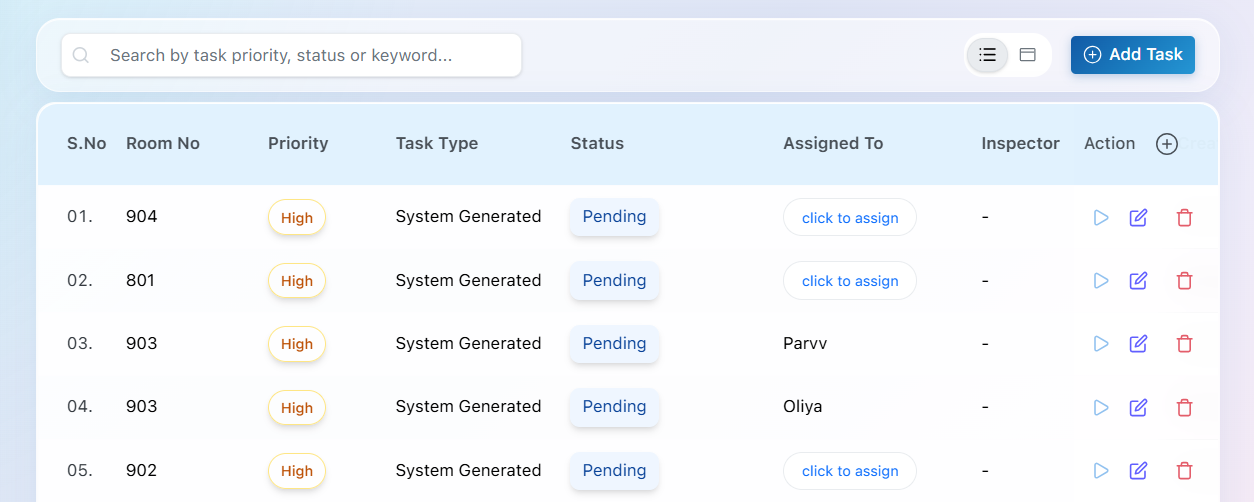
The Tasks section is the central workspace where all housekeeping tasks are created, assigned, monitored, and completed.
Automatic Task Creation
BluEarn PMS can also generate housekeeping tasks automatically.
For example:
- When a guest checks out, the PMS automatically creates a Room Cleaning task for that room.
- The room status changes accordingly (such as Dirty).
Task Assignment
-
If a housekeeping staff member is currently on duty (according to the roster), the task can be assigned automatically.
-
If no staff member is available:
- The task remains unassigned.
- It can be assigned later by clik to assign button.
- You can update the assignment, date, and time whenever required.
Staff Task Dashboard (Standard User)
Every assigned task appears in the respective housekeeping staff member's PMS account.
From their dashboard, staff members can:
- View Assigned Tasks – See all housekeeping tasks assigned to you with their priority, room number, and schedule.
- Start the Task – Begin the assigned task, its status updates automatically to In Progress.
- Complete Checklist – Mark each checklist item as completed while performing the task and add remark as well
- Request Inspection – Once all checklist items are completed, submit the task for supervisor inspection.
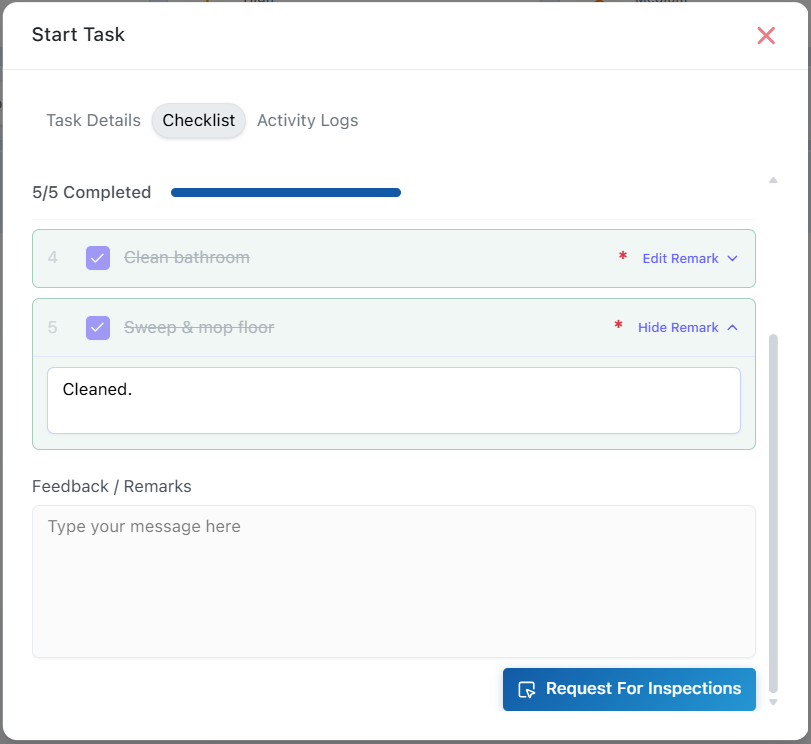
- Task Completion – After the inspection is approved, the task is marked as Completed, and the room status is updated automatically.
- Failed Inspection – If a task fails inspection, the supervisor or owner can reopen the task. The task status changes to Recleaning, allowing the assigned staff to complete the required corrections before submitting it for inspection again.
Manually Add Task
The Add Task button allows you to create housekeeping tasks manually for any room in the property.
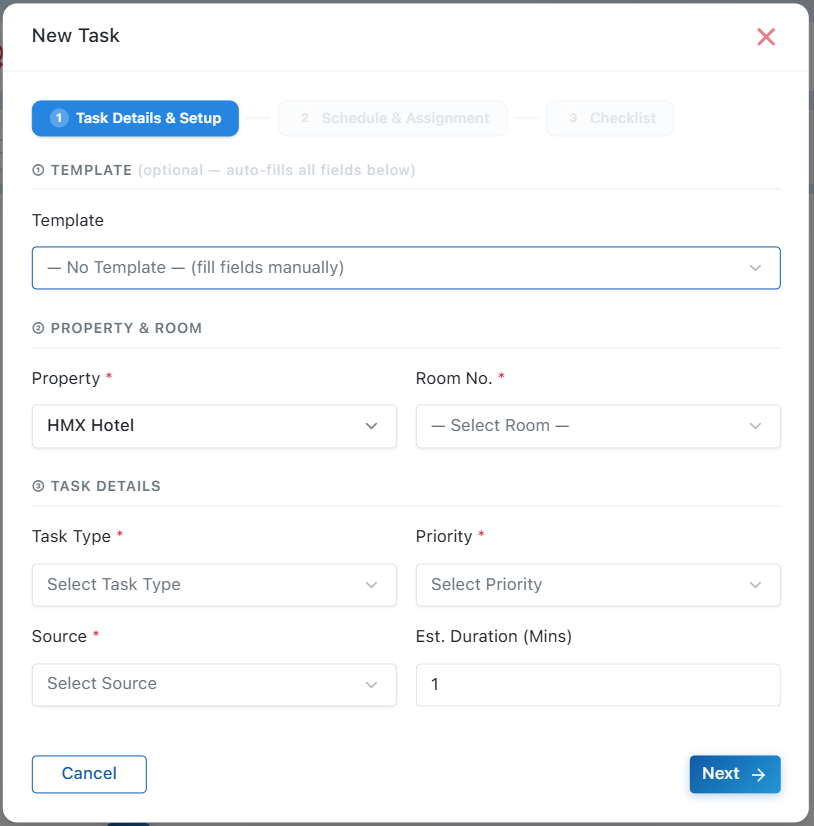
Step 1: Task Details & Setup
Template (Optional)
Select an existing housekeeping template to automatically populate task details such as: Task Type, Priority, Source, Estimated Duration, Checklist Items,
If no template is selected, enter all details manually.
Tip: Using templates reduces repetitive work and ensures consistent housekeeping procedures.
- Property & Room no - Select the hotel/property and then room no where the task needs to be performed.
- Task Type – Select the housekeeping activity (Cleaning, Maintenance, Linen Change, Turndown, etc.).
- Priority – Set the urgency of the task (Low, Medium, High).
- Source – Specify how the task was created (Manual, Checkout, Schedule, etc.).
- Estimated Duration – Enter the expected completion time in minutes.
Step 2: Schedule & Assignment
A Task Summary is displayed at the top for quick reference
- Scheduled For – Select the date and time when the task should begin.
- Due At – Specify the expected completion date and time.
- Assign To -Assign the task to the appropriate housekeeping staff.
- Inspected By (Optional) – Assign a supervisor or inspector to verify task completion.
- Notes (Optional) – Add special instructions, guest requests, or additional information for the assigned staff.
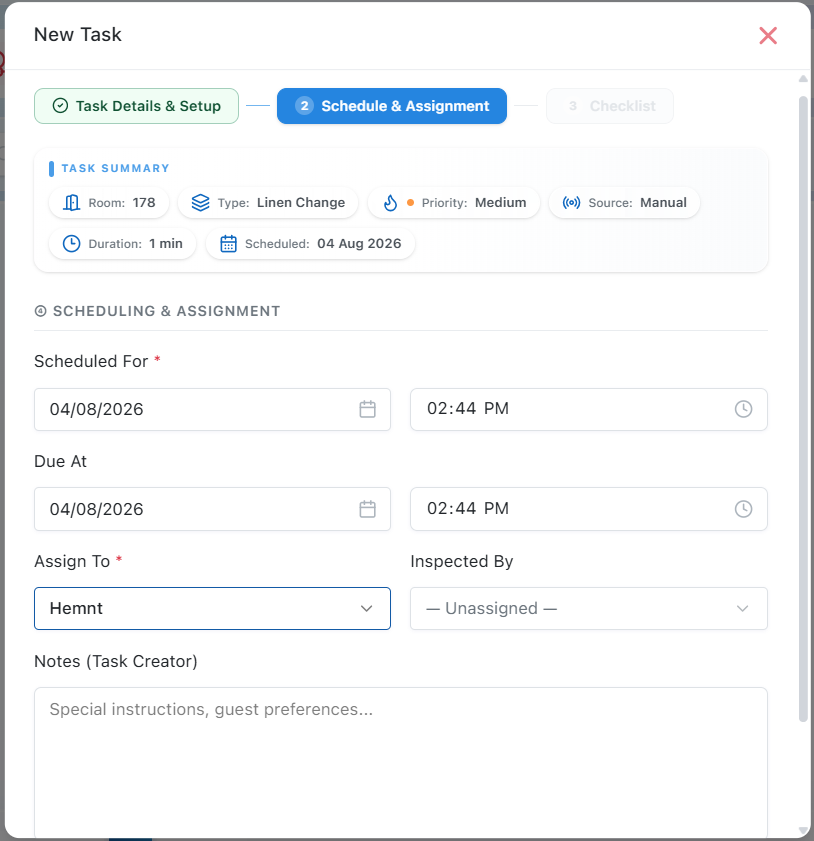
Note: If no housekeeping staff member is currently on duty, the task can not create.
Step 3: Checklist
-
Add one or more checklist items that housekeeping staff must complete.
-
Use the (+) button to add multiple checklist items.
Required Checklist-When enabled, the assigned staff member must complete that checklist item and when disabled it is not required to complete.
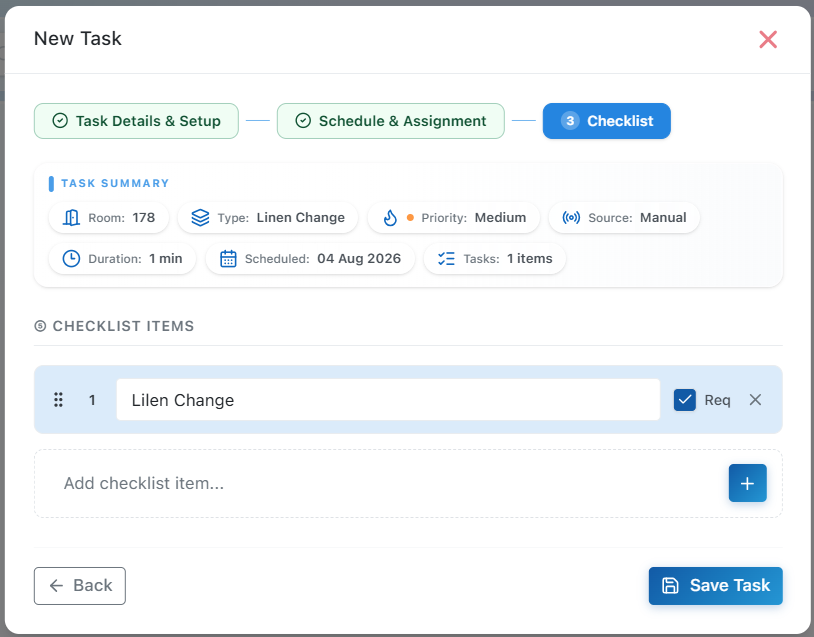
Save Task
After reviewing all details, click Save Task. The task is immediately created and becomes visible:
- In the Housekeeping Task List
- In the assigned staff member's Housekeeping dashboard
- For supervisors to monitor task progress